Typing can slow things down, especially when we have a lot to say or need to capture thoughts fast. Whether we’re writing up patient notes or documenting details during a hectic clinic schedule, using an application that converts voice to text can make the process smoother. Instead of clicking away at a keyboard, we simply talk and the words appear on screen.
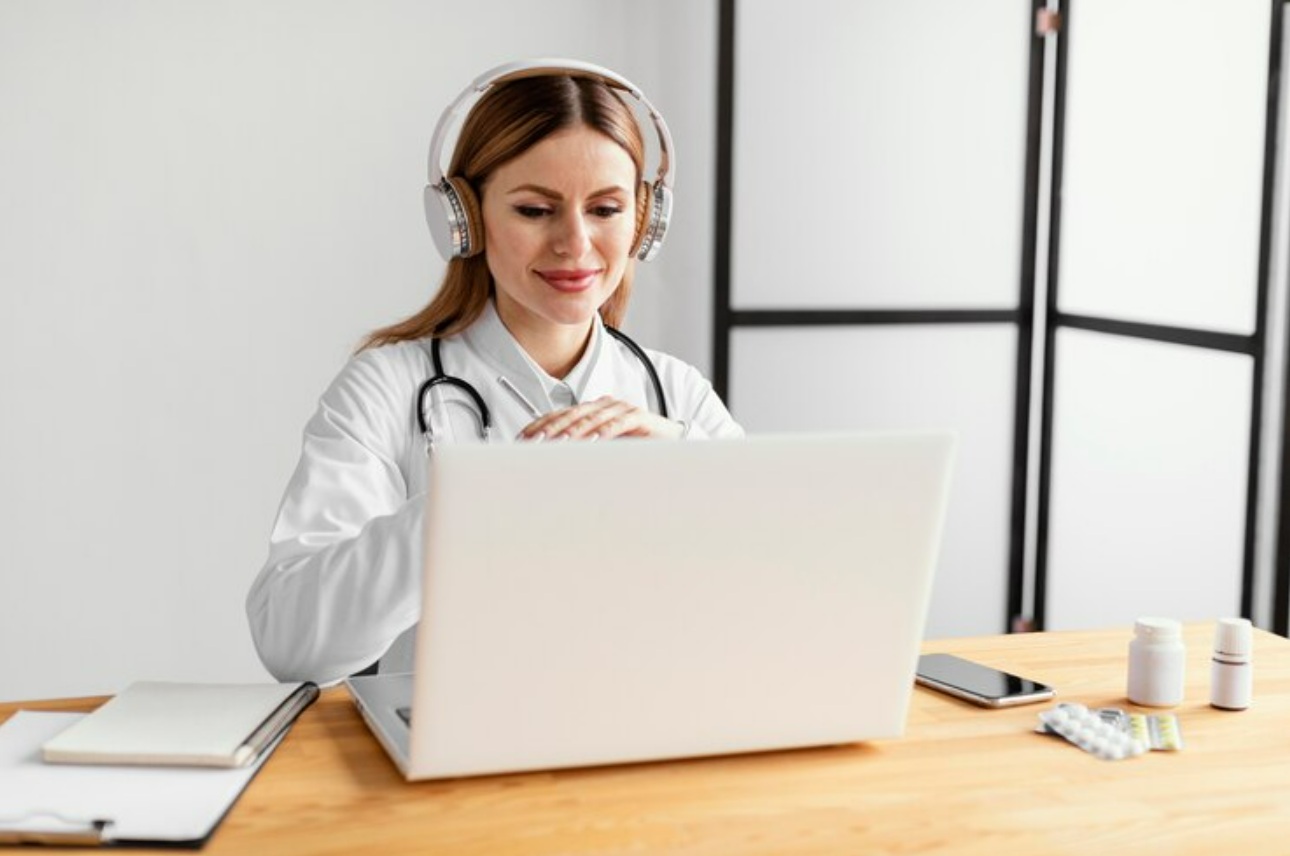
These applications do not require advanced tools. With a simple noise-canceling headset and a bit of setup, anyone can get started. What matters most is knowing how to use it the right way. From picking the right headset to learning how to speak naturally while working, voice-to-text software can become an everyday tool for less stress and more focus.
Good voice recognition starts with clear audio. That is why the first step is finding a headset that fits well and cancels out background noise. This does not have to be high-end, but it should capture your voice clearly if you are working in a shared space or anywhere with distractions.
Here is what we focus on when getting started:
Once the headset is ready, it helps to check the mic input settings. Keep the volume steady, and make sure the system is not picking up extra sound from other hardware like laptop mics or webcams. With the right setup, everything else becomes easier.
It is also helpful to designate a consistent spot for your recording equipment. Keeping your tools in one place means less time searching and more time dictating. Over time, you will notice an improvement in clarity as you get comfortable with your setup.
Modern speech recognition software works by listening to what we say and converting it into words on the screen, in real time. There is no need for voice training or setting up a profile before starting. Thanks to smart systems, the application learns quickly and adjusts to how we talk.
Because it is cloud-based, everything runs through a secure connection. That means there is no need for stored recordings. The voice is recognized instantly, and the output appears in seconds. This keeps things faster and more consistent no matter where we work from.
Dragon Medical One provides fully cloud-based medical speech recognition, so clinicians can dictate from any Windows device and access personalized settings instantly, wherever they go. In addition, built-in artificial intelligence continually adapts to your voice and medical specialty for optimal accuracy.
Best of all, the application does not expect perfect speech. It picks up on natural pauses, accents, and even phrasing. That is why teams who use these tools often get used to it quickly. The app adapts to the speaker instead of the other way around.
Software updates happen in the background, so users do not need to worry about manual downloads or lost work time. With ongoing improvements, the software gets better at following your speech and understanding new terms.
Once set up, the next step is learning the built-in controls. Voice commands make it possible to move through text, fix mistakes, and format without needing to touch a keyboard.
We can start by saying basic phrases like:
Using natural phrases cuts down typing time and keeps us focused on the content. For example, when we say, “Period. New line. Next item,” we are pacing the text instead of pausing to move a cursor. That kind of flow matters when time is short and we just need to get things done.
We can also correct mistakes with our voice. Commands like “Edit that” or “Insert before [word]” help us clean things up without breaking our rhythm. The more we use these tools, the more comfortable and fast the process becomes.
If you find that a particular command is not working, checking the app’s help section for a quick guide can solve common problems. Practicing commands for formatting, navigation, and corrections allows you to fully take advantage of the voice app’s features.
The real benefit shows up when voice apps become part of everyday routines. During patient visits, we can describe symptoms, treatment notes, or follow-up reminders while staying focused on what matters. Everything gets captured without staring at a keyboard or typing mid-conversation.
Here is how we make everyday voice dictation more efficient:
With Dragon Medical One, clinicians can use their smartphones as secure wireless microphones through the PowerMic Mobile app, allowing for efficient hands-free dictation even as you move between patient rooms or locations.
When paired with mobile tools, a smartphone can become a wireless mic. This means we are not stuck at one workstation. We can walk, talk, and complete notes without missing a step. It adds flexibility without losing structure.
If your routine changes or your role expands, voice apps can easily keep pace. Customizing templates and word lists is quick, and your preferences will be preserved no matter the device you use.
No system is perfect, especially at first. Sometimes, the voice app might pick up a wrong word or mishear a command. It helps to speak steadily, without trailing off or rushing words. Try to keep the mic pointed the same way each session to reduce errors.
We have seen improvements by focusing on:
If the tool inserts the wrong word, a quick “Select [word]” followed by “Correct that” can fix it fast. These tweaks may take practice at the beginning but save time quickly once it becomes second nature.
If you are experiencing repeated mistakes, checking your equipment and revisiting your list of customized phrases often makes a significant difference. Getting comfortable with pauses and follow-up corrections will improve the overall result of your documentation.
Using a well-designed application that converts voice to text, such as Dragon Medical One, can make everyday charting feel much more manageable. Features like secure cloud access, specialty-specific vocabularies, and AI-driven accuracy help maintain your workflow and focus on patient care.
With tools that are easy to access and adapt to your speaking style, documentation feels less like a chore and more like part of a natural workday. Over time, you can achieve better records, less stress, and more meaningful patient interactions.
Working more efficiently and spending less time at your keyboard is possible with an application that converts voice to text, giving you the flexibility to fit documentation into your daily routine. At Dragon Medical One, we design solutions that integrate seamlessly into your workflow, whether you are in a busy clinic or working remotely. Experience real-time speed, smooth device transitions, and clear, accurate documentation from the first word. Ready to see the difference? Contact us today to learn how our software can help you stay ahead.